





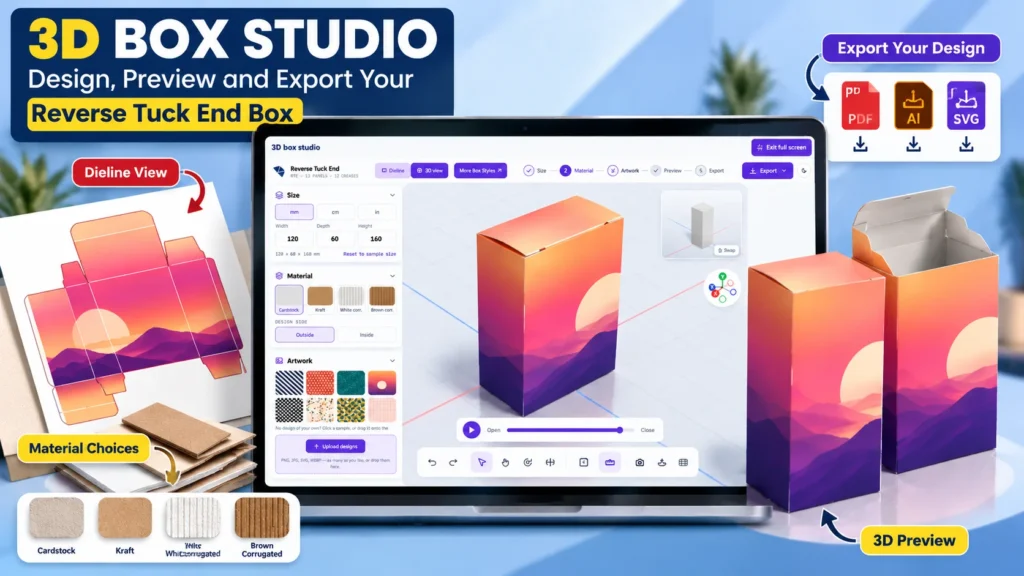
Designing a box online used to mean buying design software and learning how a flat carton folds into a box. Our two free tools now do that work for you in a browser with no account or download.
The dieline generator draws the flat cutting layout for your box at your exact size. The 3D box studio then folds that same layout on screen, lets you place your artwork and shows the finished box from every side before anything is printed.
This guide walks through both tools one step at a time. It shows you how to pick a style and enter the right size before you add artwork. Then you check the fold in 3D and download files a printer can use straight away.
Key takeaways
- The free dieline generator draws a true size flat layout with cut, crease and bleed lines for the box style you choose.
- The 3D box studio folds that same dieline on screen so you can add artwork and check the box from every angle.
- Enter the inside size as Length, Width and Height in millimeters, centimeters or inches before you do anything else.
- You can download PDF, AI and SVG print files plus a PNG picture and a video of your box folding.
- Send the exported PDF through our quote form and we print from 100 boxes per size and design with no setup fees.
What Can You Do With the Free Dieline Generator and 3D Studio?
You can design a box online from a blank screen to a print ready file with two free tools built for our custom boxes. The dieline generator handles the structure of the box while the 3D studio handles how it looks once it is folded and printed.
Both tools run in your browser and neither one asks you to sign up. They use the same box engine that our prepress team uses, so the layout you see is the layout that goes to the cutting die.
| Tool | Where to find it | What you get |
|---|---|---|
| Free dieline generator | Die Cut Boxes page | A true size flat layout with cut, crease and bleed lines in AI, PDF or SVG |
| 3D box studio | Box Mockup Generator page | Your box folded on screen with artwork, plus PDF, AI, SVG, PNG and video downloads |
| Quote form | Get a Quote page | A price, a proof and a sample option for the box you designed |
Most people start in the dieline generator because size comes first. Once the size is right you carry the same box into the 3D studio with one click and finish the design there. The first decision in either tool is the box style.
Which Box Style Should You Start With?
Start with the box style that matches how your product is sold and shipped. A reverse tuck end carton suits most small retail products while a mailer suits online orders and a tray or sleeve suits gifts.
The free dieline generator groups its styles into folding cartons, mailers, trays and displays, and every style card opens with that structure selected. The 3D box studio shows its own set of style cards with a sample size so you can open a box in 3D straight away.
| If you sell | Start with | See the product page |
|---|---|---|
| Cosmetics, supplements and small goods | Reverse tuck end carton | Folding cartons |
| Products shipped to customers | Rollover hinged lid mailer | Mailer boxes |
| Gifts and premium kits | Tray and sleeve or magnetic closure box | Rigid boxes |
| Candy, favors and small gifts | Pillow box | Pillow boxes |
| Products sold from a counter | Display box | Display boxes |
If you are unsure, open two or three styles at your size and compare them in 3D. Seeing a style fold at your real dimensions is the quickest way to rule one out. With a style chosen the next step is the size.
How Do You Make a Dieline in the Generator?
You make a dieline by choosing a style and a unit and then typing Length, Width and Height before you select a board. The flat layout redraws as you type so you can watch each panel change size.
| Step | What to do | What you see |
|---|---|---|
| 1. Open the generator | Go to the Die Cut Boxes page and click a style card | The generator opens with that style selected |
| 2. Pick a unit | Choose millimeters, centimeters or inches | All fields switch to that unit |
| 3. Type the size | Enter Length, Width and Height | The flat layout redraws as you type |
| 4. Pick the board | Choose SBS, kraft or corrugated | Fold allowances update for that thickness |
| 5. Check the flat | Look at the cut, crease and bleed lines | Every panel shows its name and size |
| 6. Download | Click Download and choose AI, PDF or SVG | A true size file with no watermark |
The board choice matters because thicker board adds size at every fold. Folding cartons use SBS paperboard from 12 pt to 24 pt or kraft board at 18 pt. Corrugated boxes use E flute at 1.5 mm or B flute at 3 mm. Our guide to SBS paperboard explains which thickness suits which product.
Once the flat looks right you can download it as an AI, PDF or SVG file at true size with no watermark. Before you download it helps to know what each line on the drawing means.
How Do You Read a Box Dieline?
You read a box dieline by its line colors because each color tells the factory what to do at that spot. Red lines are cuts and dashed blue lines are creases where the board folds. Green lines mark the bleed edge where your background artwork should stop.
| Line | What it means | What to do with your artwork |
|---|---|---|
| Solid red | Cut line where the die cuts through the board | Keep text and logos at least 3 mm inside it |
| Dashed blue | Crease line where the board folds | Avoid placing small text across it |
| Green | Bleed edge outside the cut | Run background color all the way to it |
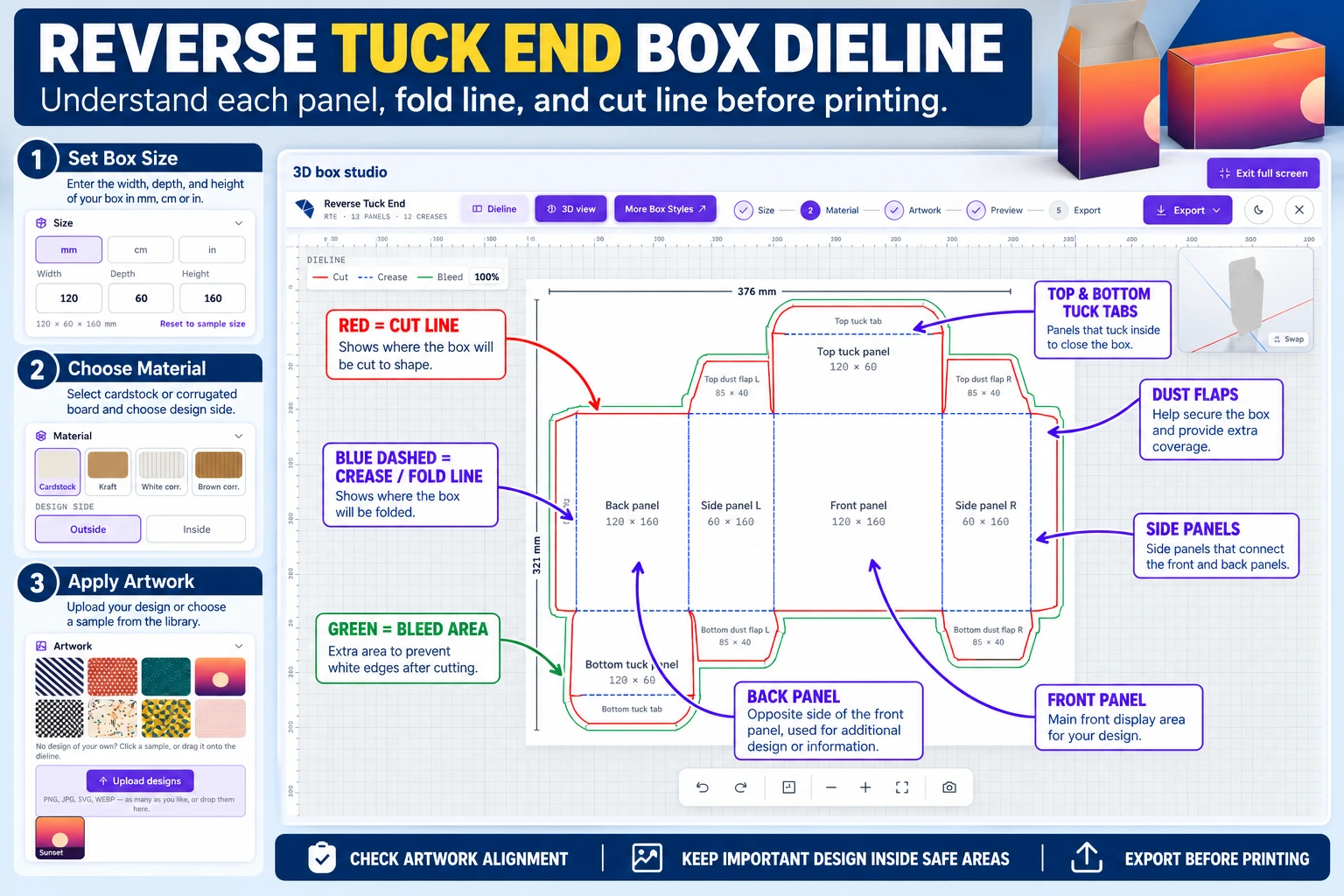
Every panel on the drawing carries its name and size. A reverse tuck end at 120 by 60 by 160 mm has front and back panels of 120 by 160 and two side panels of 60 by 160. It also has a glue flap, two tuck panels and four dust flaps.
The total blank size sits along the top and side of the drawing. That same reverse tuck end needs a flat blank of 376 by 321 mm on 0.50 mm board, which tells you how much board one box uses. The numbers you type decide every one of these panels, so they need to be measured the right way.
Which Dimensions Should You Enter?
Enter the inside dimensions of the box as Length, Width and Height. Length is the longer side of the opening, Width is the shorter side and Height runs from the bottom panel to the top panel.
Measure the product at its widest points with any cap or pump or label included and then add a small clearance. For most retail cartons about 3 mm on Length and Width and a little more on Height lets the product slide in without rattling. Our box measuring guide shows exactly where to place the ruler.
The 3D studio shows the size you typed next to the size it measures once the box is folded. A reverse tuck end typed at 120 by 60 by 160 mm folds to about 121 by 61 by 161 mm on 0.50 mm cardstock. With the size settled you can carry the box into the 3D studio.
Designed your box already?
Export the PDF from the 3D studio and send it with your quantity. We return a proof and a price for your boxes.
How Do You Open Your Dieline in the 3D Studio?
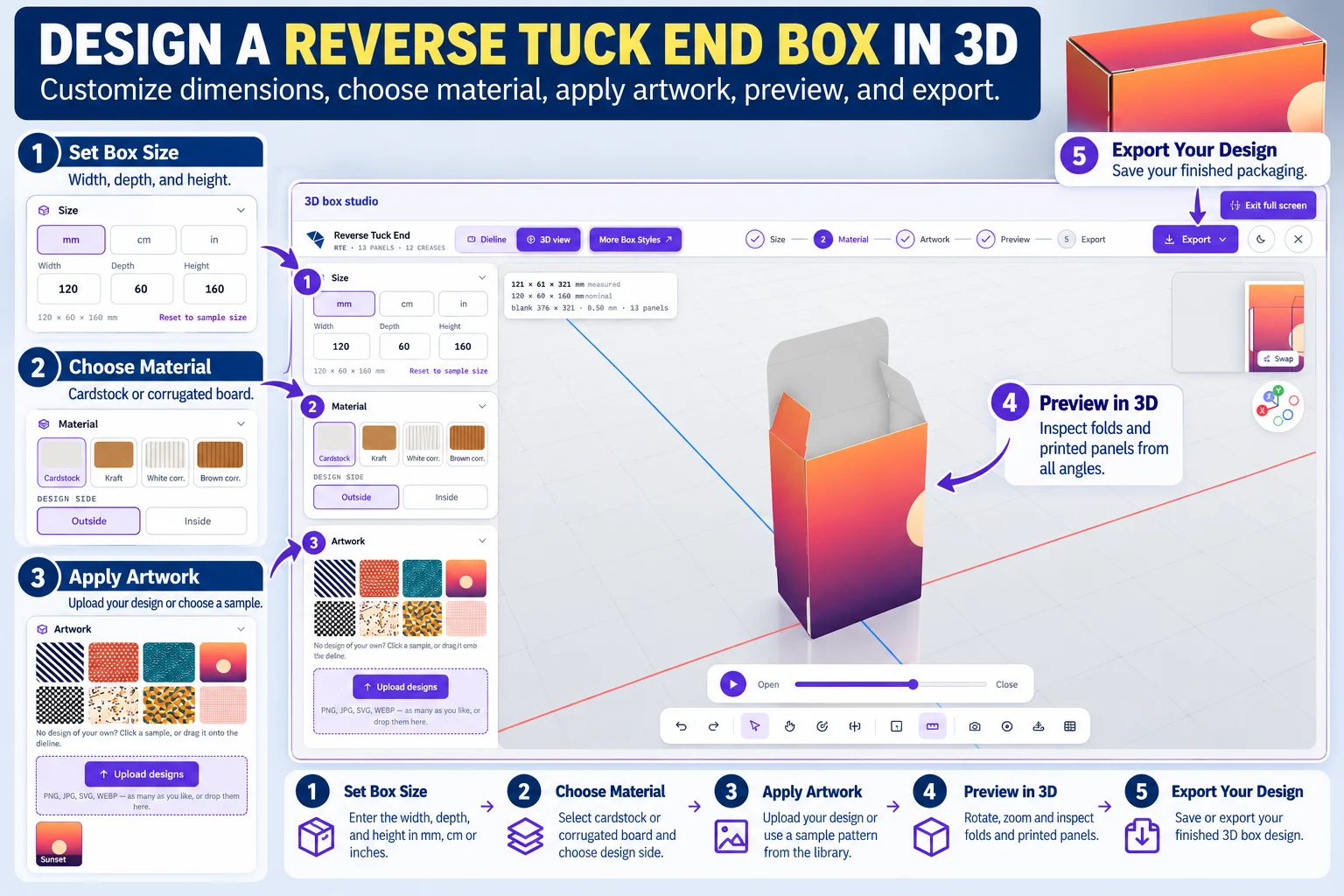
You open your dieline in 3D by clicking the Box Design Online button in the dieline generator. The 3D studio then opens with the same style, the same Length, Width and Height and the same material already filled in.
You can also start in the 3D box studio itself and pick a style card there. Each card opens its box at a sample size and you change it in the Size panel on the left.
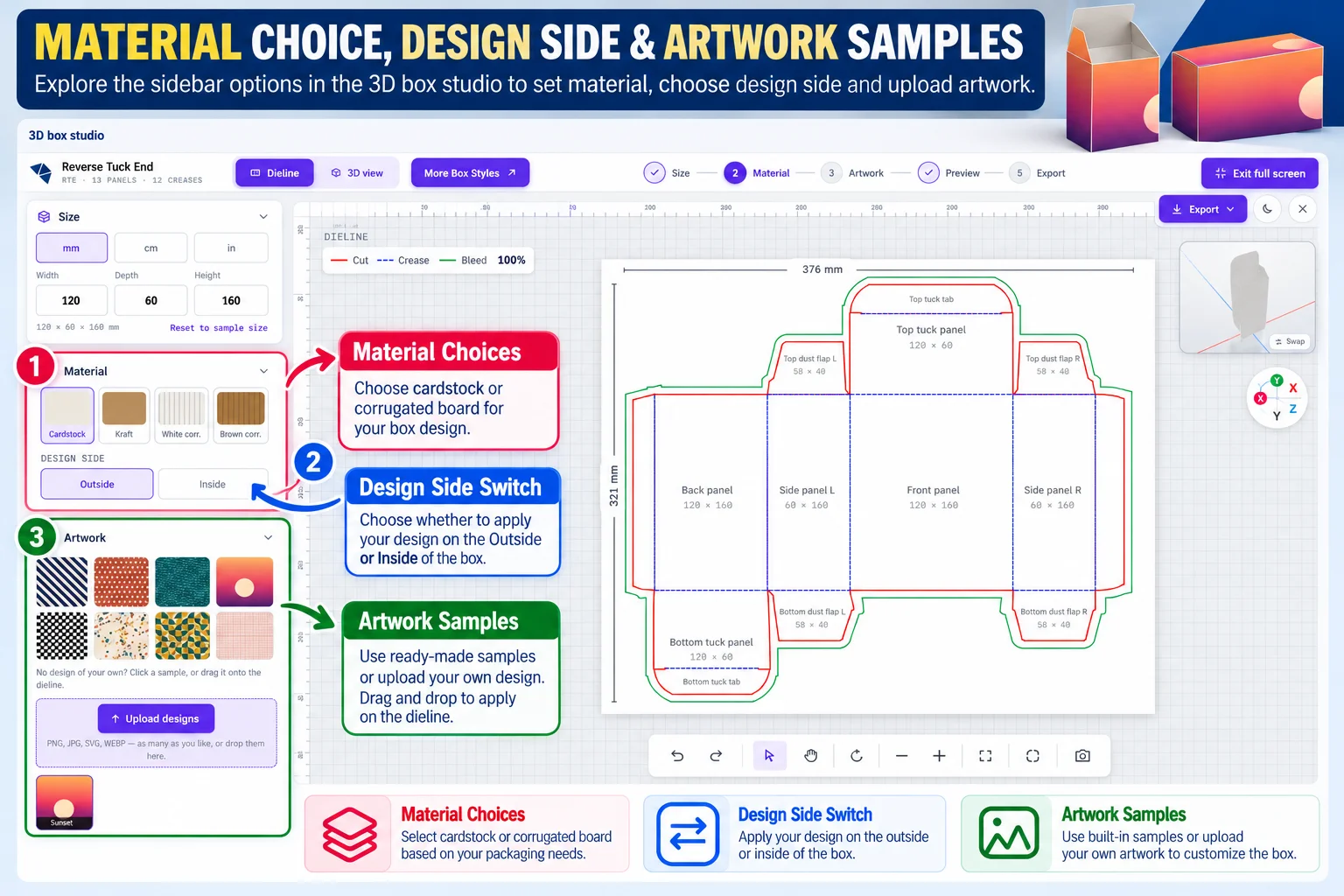
The studio header shows the style name with its panel and crease count next to two tabs called Dieline and 3D view. A More Box Styles button takes you back to the generator for other shapes. Steps across the top run from Size to Material, Artwork, Preview and Export so you always know what comes next.
The Dieline tab is where you place artwork, and the 3D view is where you check it. Artwork comes first because it is the step most people care about.
How Do You Add Your Artwork to the Box?
You add artwork by clicking Upload designs, choosing your files and dragging each one onto a panel of the dieline. The studio accepts PNG and JPG files as well as SVG and WEBP files in any number.
Pick the material before you place artwork because it changes how the box looks. The studio offers cardstock and kraft plus white and brown corrugated. Kraft shows your colors darker over the brown board just as a printed kraft box does.
| Artwork tip | Why it matters |
|---|---|
| Size each file to its panel in millimeters | The art fills the panel without stretching |
| Use vector files for logos and text | Edges stay sharp at any size |
| Use images of at least 300 dpi at print size | Photos stay crisp on the printed box |
| Extend background color into the bleed | No white edges appear after cutting |
| Check the Design side switch | Art lands on the outside or inside as you intended |
The Design side switch moves you between the outside and the inside of the box. Use Inside when you want a printed message under the lid or a pattern that shows when the customer opens the box.
If you have no design yet, click one of the eight sample patterns to see how a print looks on your box. Once the panels are covered it is time to fold the box and check your work.
How Do You Check Your Box in 3D?
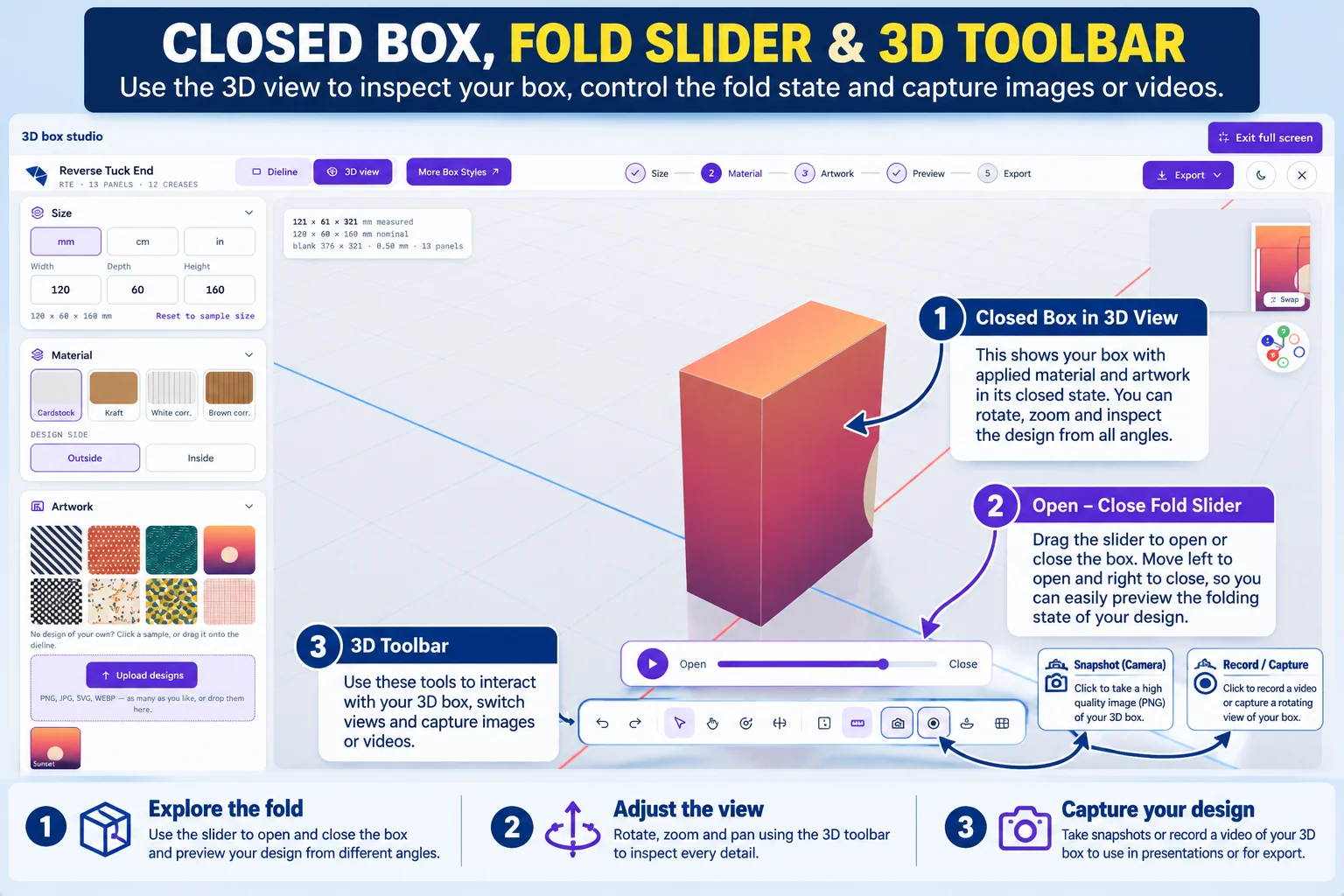
You check your box by opening the 3D view and moving the fold slider from Open to Close. The flat dieline folds into the finished box on screen, so you can watch every panel and flap move into place.
Press play to run the whole fold as an animation or drag the slider to stop at any point. Use the tools under the box to rotate and zoom so you can look at the base and the lid and the inside.
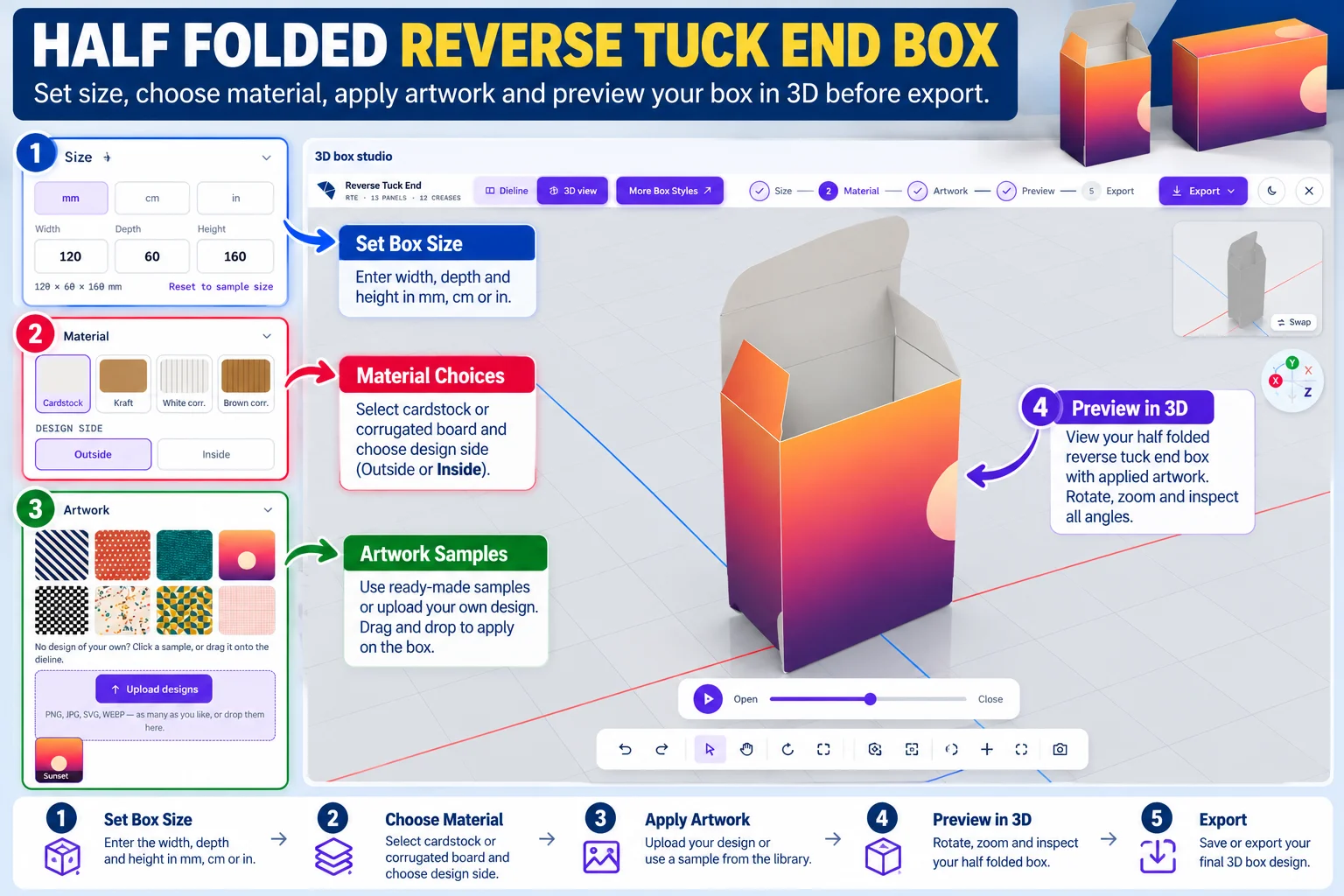
Look closely at every fold line while you rotate the box. A logo that runs across a crease or text that sits on a glue flap is easy to spot in 3D and easy to fix before you download. When the box looks right you are ready to export.
What Can You Download From the Studio?
You can download three print files from the Export menu plus a picture and a video from the 3D view. The print files are a layered vector PDF with sizes and artwork plus an AI file for Adobe Illustrator and an SVG file for cutting tables.
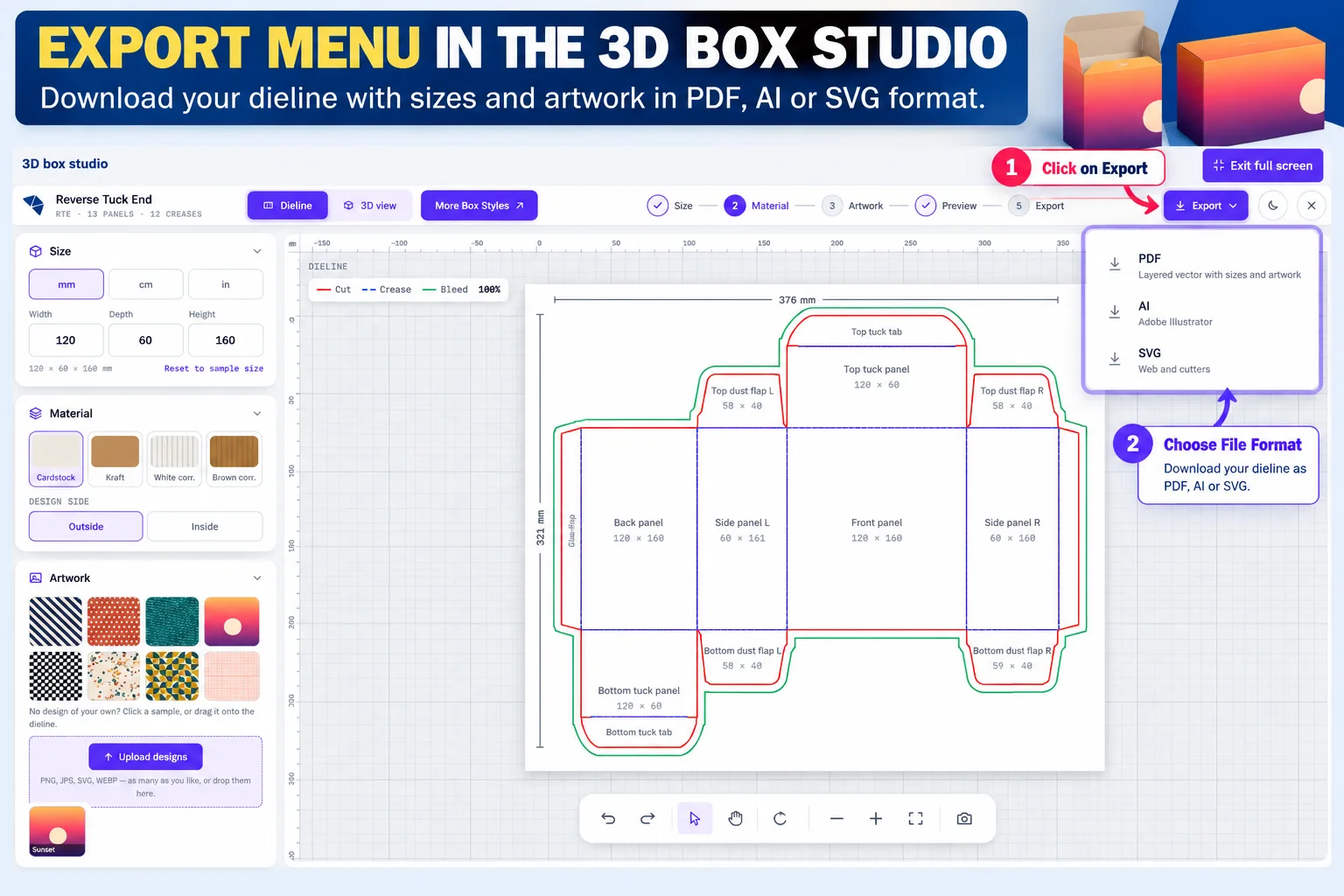
| Download | Where you find it | Best use |
|---|---|---|
| Export menu | Print file with the dieline and artwork on separate layers | |
| AI | Export menu | Editing in Adobe Illustrator |
| SVG | Export menu | Web use and digital cutting tables |
| PNG snapshot | Camera button in the 3D view | Sharing a design picture with a team or client |
| WebM video | Record button in the 3D view | A folding box video for a pitch or product page |
The PNG snapshot is the fastest way to show a design to a client or a team member. The WebM video of the box folding works well on a product page or in a pitch deck.
The PDF matters most for printing because it carries the dieline and your artwork on separate layers, and it is the file that turns a screen design into a real order.
How Do You Turn Your Design Into a Printed Order?
You turn your design into an order by exporting the PDF and uploading it on our quote form with your quantity and contact details. Our prepress team checks the file and sends a proof with a price, and nothing prints until you approve it.
| Step | Time |
|---|---|
| Export the PDF and send the quote form | A few minutes |
| Price and digital proof from our team | Usually within a business day |
| Plain sample, if you want one | 3 to 5 business days |
| Printed pre-production sample, if you want one | 7 to 10 business days |
| Production after dieline approval | 8 to 10 business days |
| Delivery | Free shipping across the United States |
We print from 100 boxes per size and design with no setup or tooling fees. Production takes 8 to 10 business days after dieline approval for folding cartons and corrugated boxes, and shipping is free across the United States.
If color matters then order a printed sample first because a screen shows RGB light while a press prints CMYK or Pantone ink. A plain sample takes 3 to 5 business days and a printed pre-production sample takes 7 to 10. Most problems can still be avoided before you reach this stage.
What Mistakes Should You Avoid When Designing a Box Online?
The most common mistake is entering the outside size of the product instead of the inside size of the box. The second is placing text or a logo too close to a fold, where it bends out of sight on the finished box.
| Mistake | How to avoid it |
|---|---|
| Typing the product size as the box size | Add clearance and enter the inside size |
| Text or logo across a crease | Keep key elements in the middle of each panel |
| Low resolution photos | Use 300 dpi images or vector files |
| RGB colors for a brand color | Name the Pantone color in the print file |
| Forgetting the bleed | Run backgrounds out to the green bleed line |
| Ignoring board thickness | Check the measured size in the 3D studio |
Each of these mistakes shows up in the 3D view if you look for it and that is why checking the fold is worth the extra minute. Our artwork guidelines list the full file rules in one place.
Some boxes need more than the tools can give, and that is the last question this guide answers.
When Should You Ask Our Team Instead?
Ask our team when your box needs an insert or a window or a structure that the tools do not offer yet. Our structural packaging design service builds those dielines for you and still sends a free mockup before production.
You should also ask when you have a product but no artwork. Our in-house designers place your logo and colors on the dieline at no charge when you send your files and an idea of the look you want.
Frequently asked questions
The short version
Designing a box online takes three steps on our site. Make the dieline at your inside size in the free generator, then carry it into the 3D studio to add artwork and fold it on screen.
Download the layered PDF when the box looks right and send it through the quote form. We check the file, send a proof and print from 100 boxes per size and design with free shipping across the United States.
Ready to print the box you designed?
At The Customized Boxes we print from 100 boxes per size and design with no setup fees, production in 8 to 10 business days after dieline approval and free shipping across the United States.
